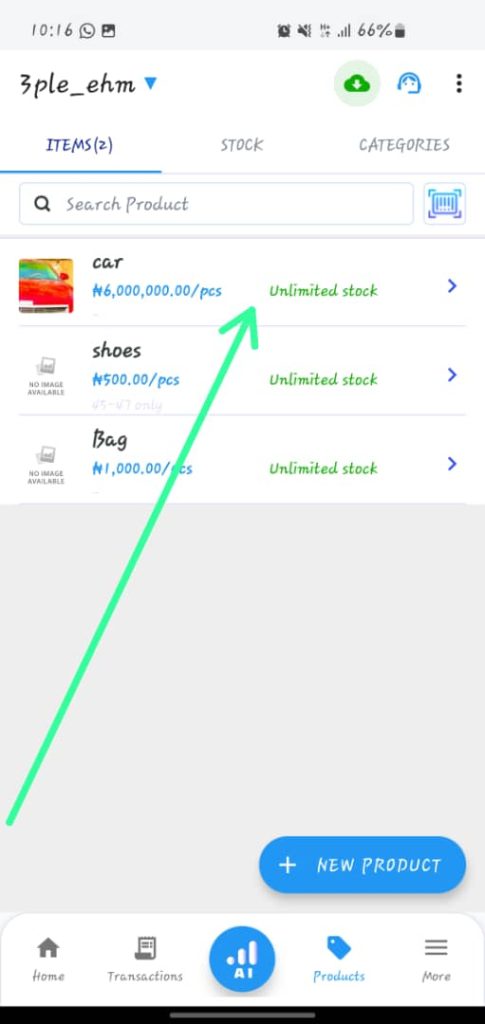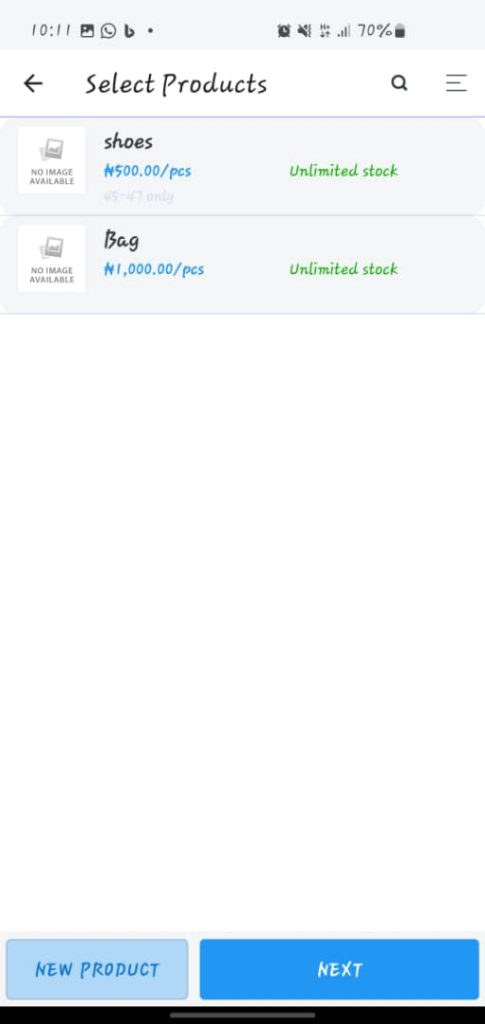






How to Update/Edit a Sale.
Follow these steps to update or edit a sale:
1. Open the OnTrack AI Offline POS & eStore and log in.
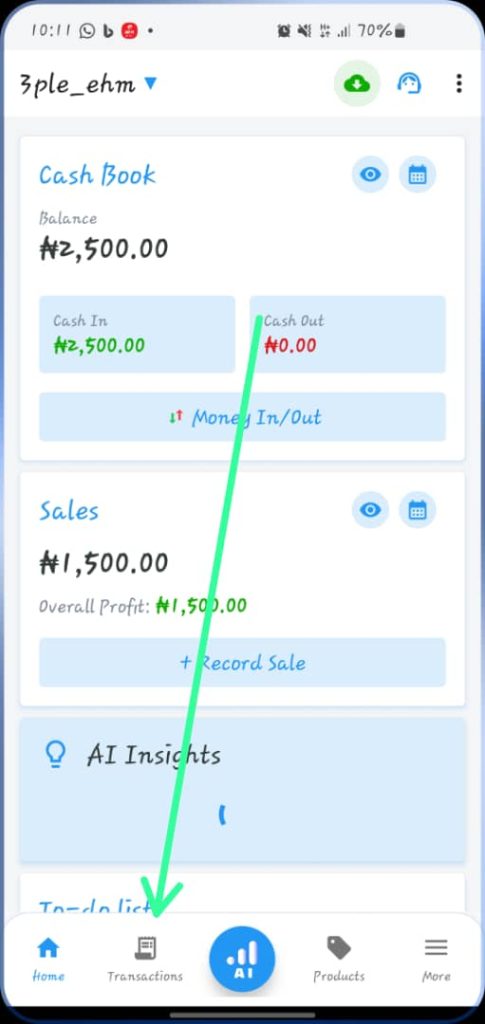
2. Click on the “Transactions” tab from the bottom taskbar.
3. Select the sale you want to update/edit. This will open the “Transaction Details” page.
4. Click on the edit (pen) symbol, located at the top right, next to the “Transaction Details” text. This will open an editable version of the sale record.
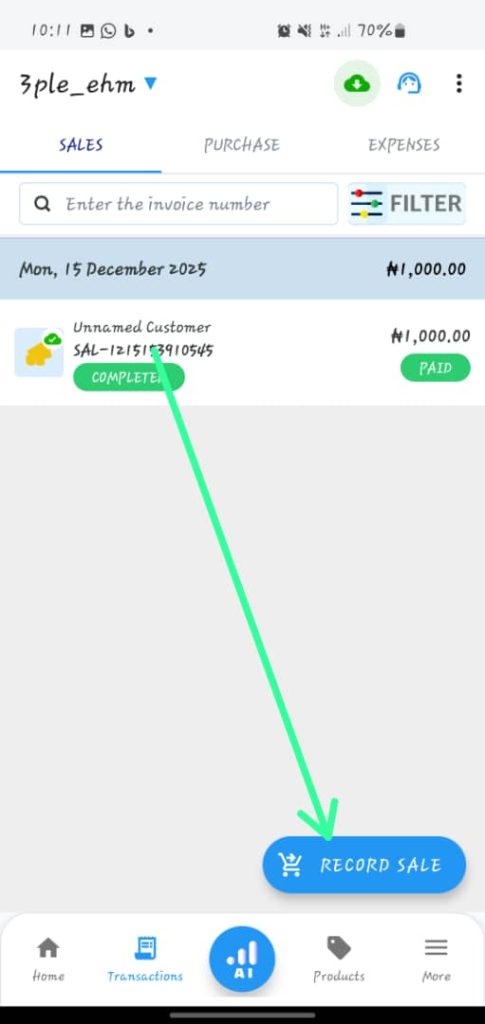
5. Edit any necessary information and press the back arrow to save the changes.