






How To Set Up Low Stock Alerts in OnTrack Desktop
1. Log in to the OnTrack POS App.
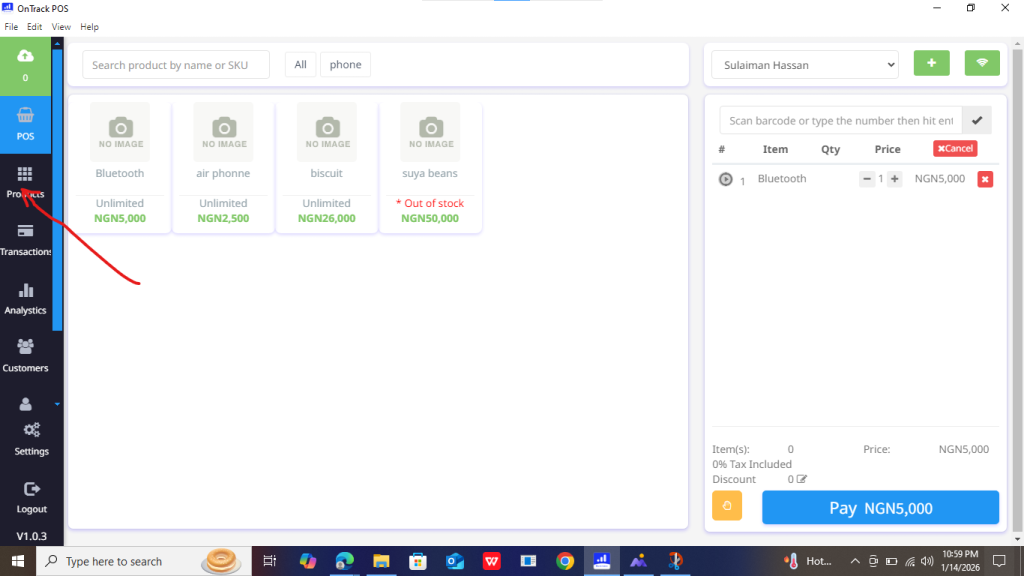
2. Access the Products section and select the product.
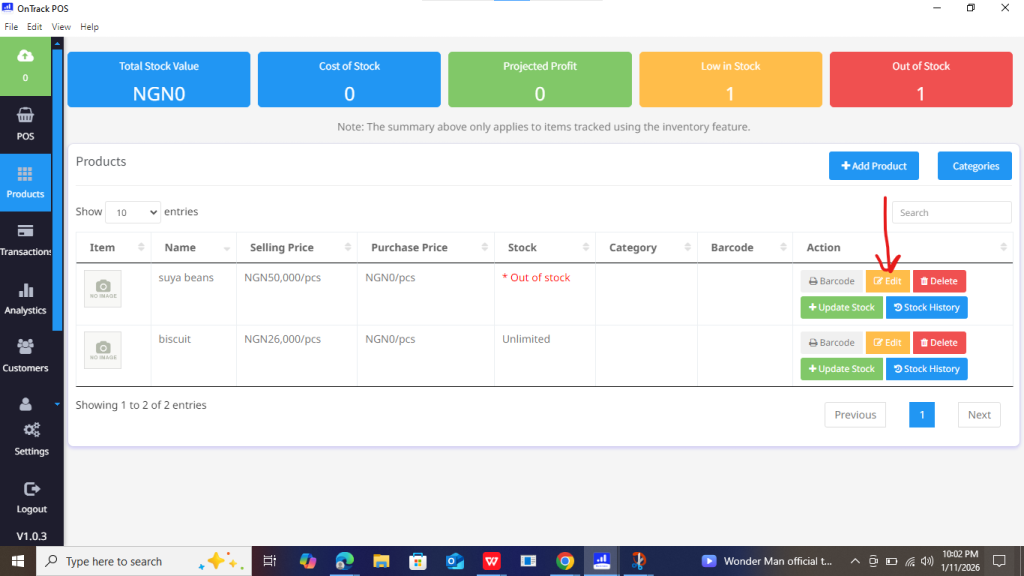
3. Locate the product, then click Edit.
4. Under Manage Stock, toggle Yes.
5. Specify quantities for First Stock (current inventory) and Alert Stock (low-stock threshold).
Example: First Stock = 50, Alert Stock = 10 triggers alerts when stock reaches 10.
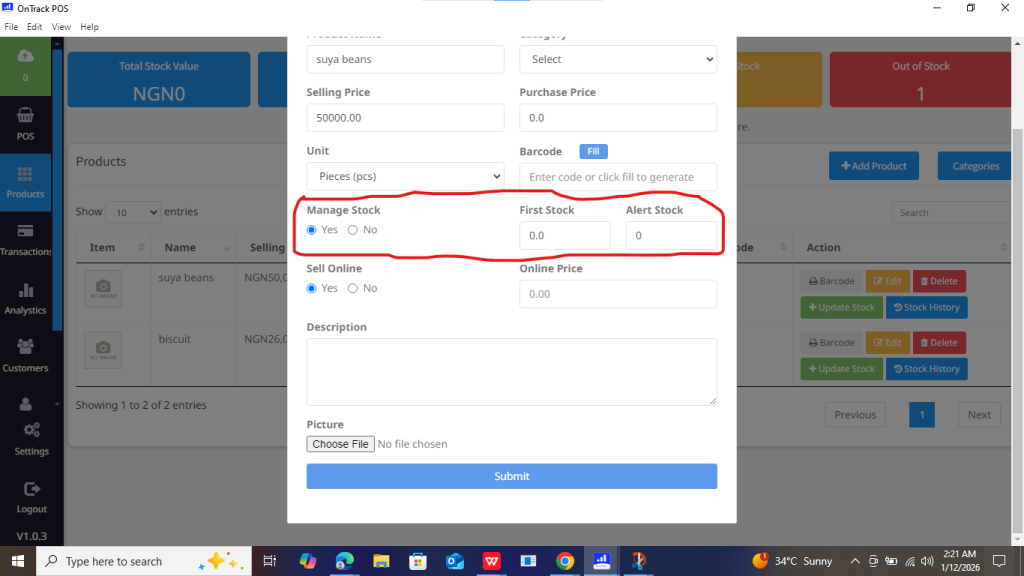
6. Save by clicking Submit.
