





How to Add Items and Categories in OnTrack Desktop
To Add Items (Products):
1. Log in to the OnTrack POS App.
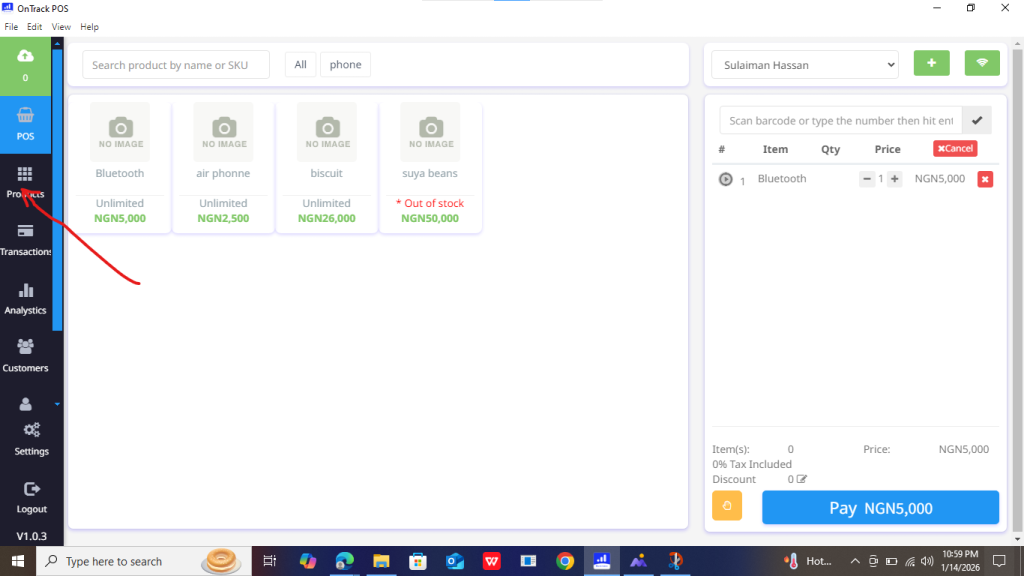
2. Click on Products from the left sidebar of the page.
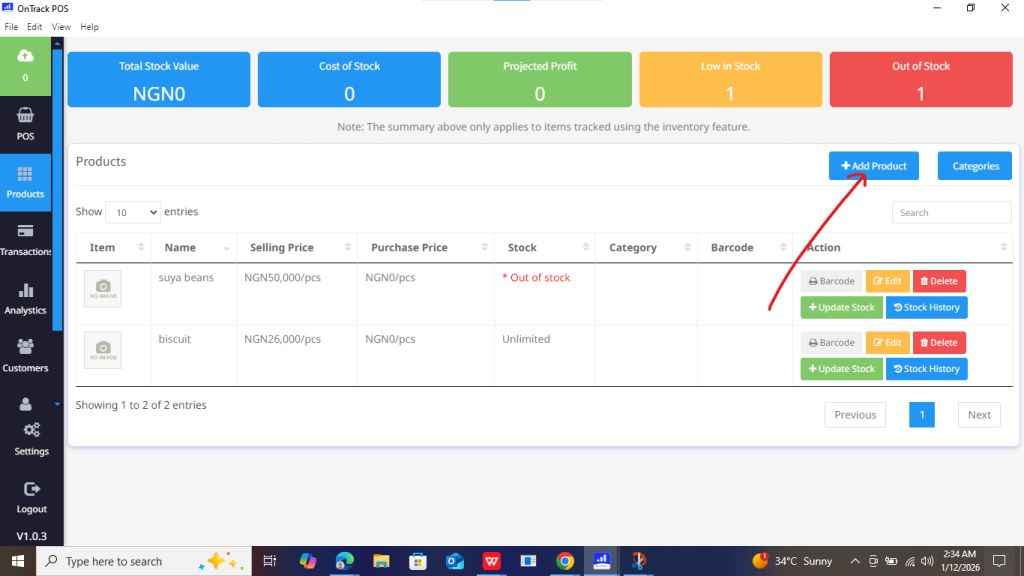
3. Click on the Add Product button from the upper right-hand areas of the page. This will open the product form.
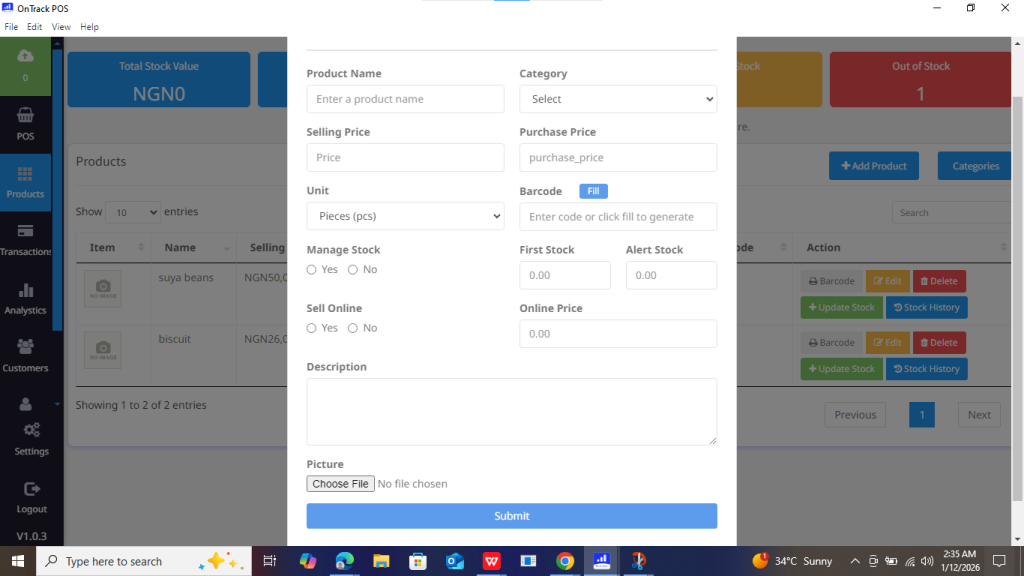
4. Complete the product form and save by clicking on the Submit button from the bottom of the form.
To Add Categories:
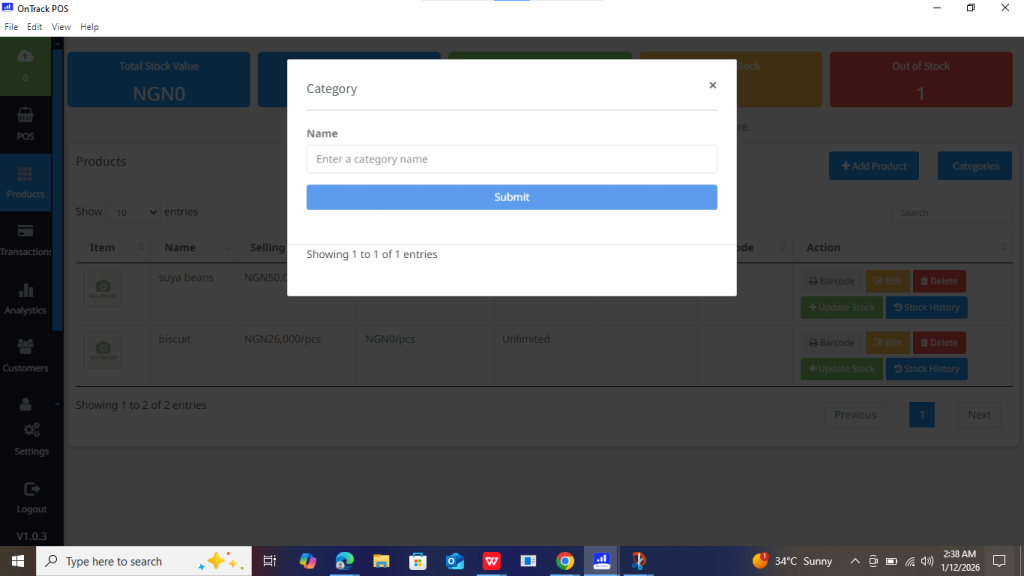
1. In the Products section, click Categories. This will open the list of available categories (if there is/are any).
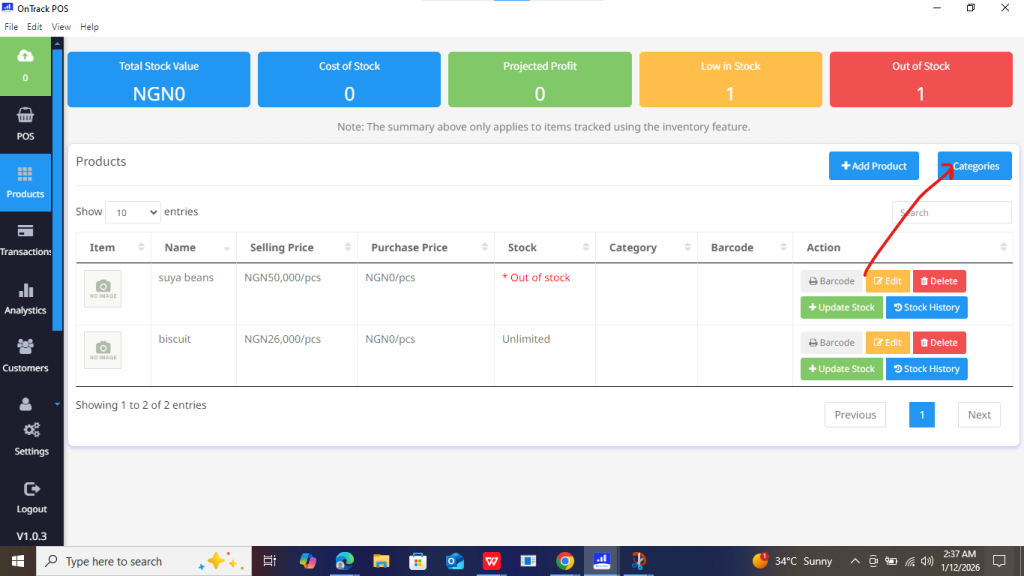
2. Click the Add Category button from the top right area.
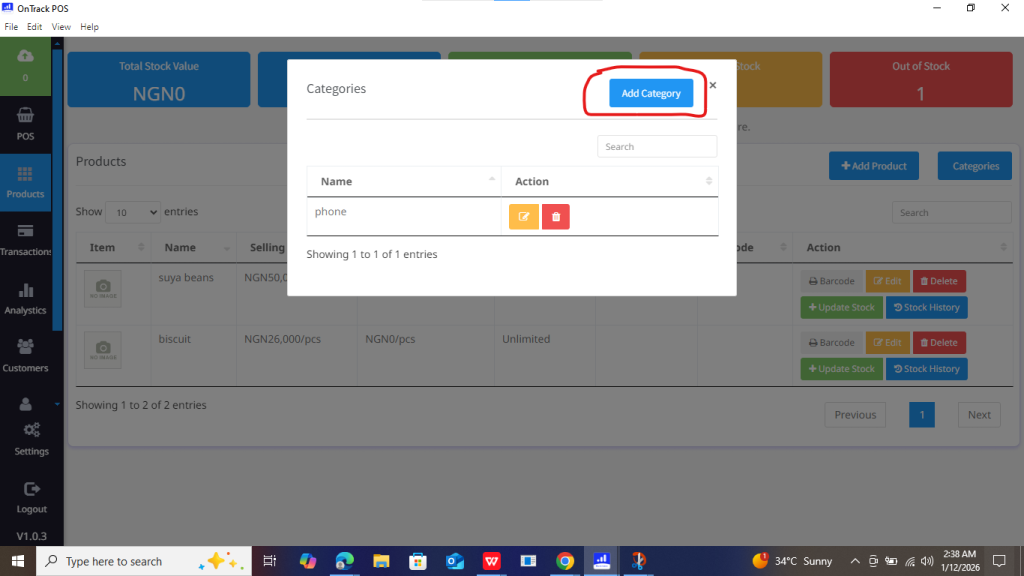
3. Enter the name of the new category and click Submit to save it.