






Setting up a Bluetooth Thermal Printer for Receipt Printing #1275
1. Turn on the Bluetooth thermal printer.
2. On your computer, open Bluetooth Settings.
3. Pair the printer with the computer.
4. Open OnTrack Desktop App.
5. Go to Settings.
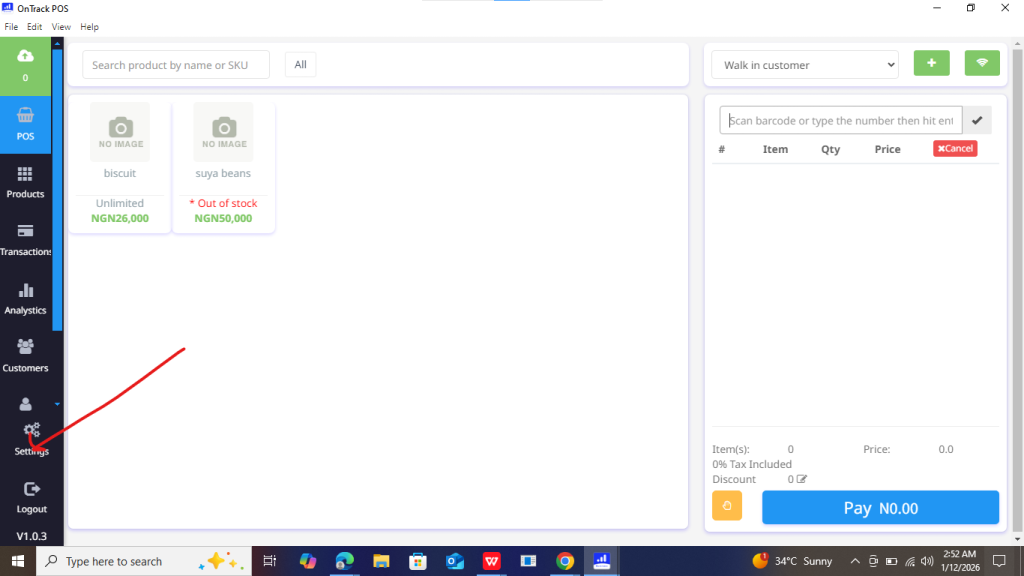
6. Select Printer Settings / Receipt Settings.
7. Choose the paired Bluetooth printer from the printer list.
8. Select receipt size (e.g. 58mm or 80mm).
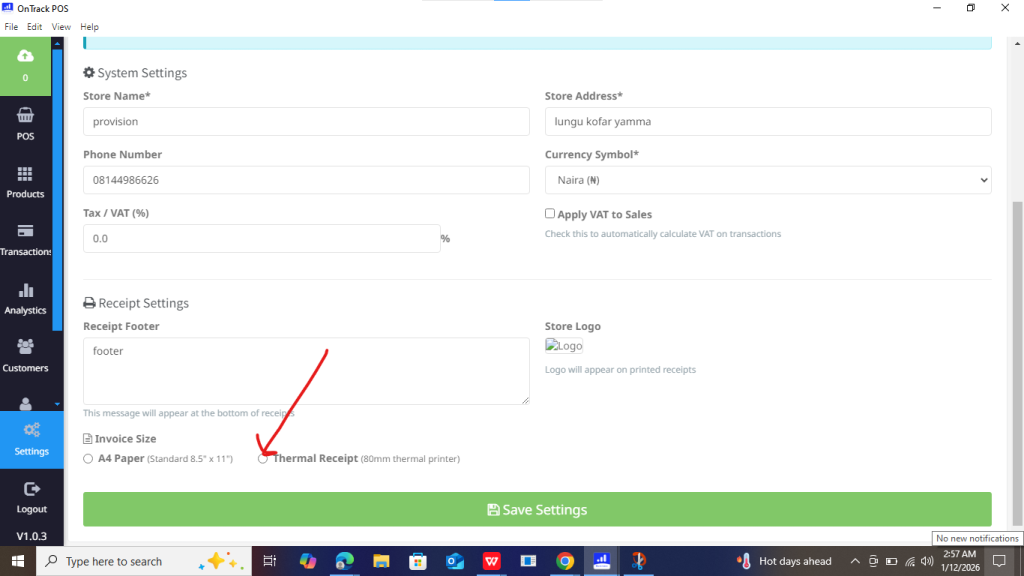
9. Click Test Print to confirm connection.
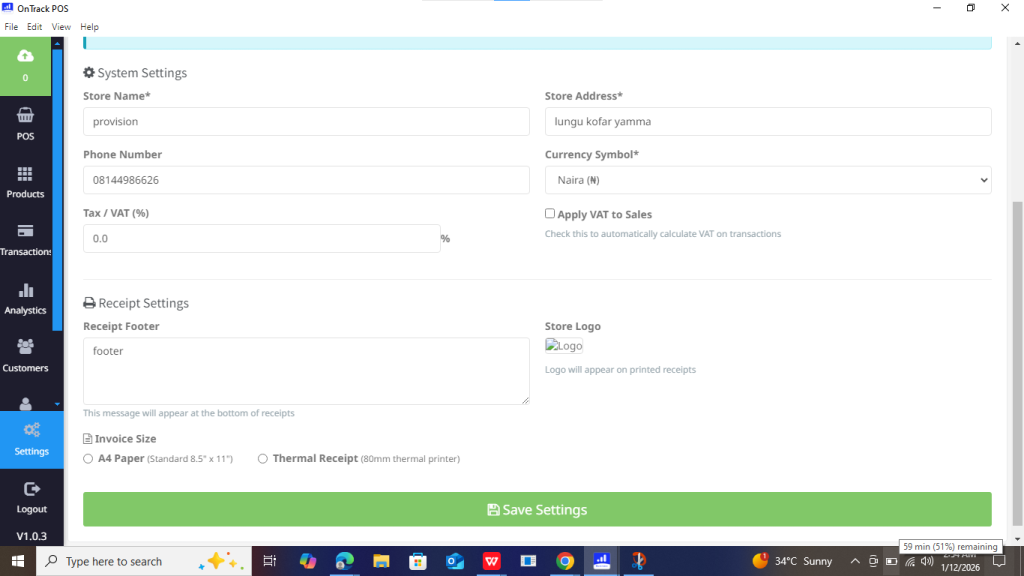
10. Click Save Settings.
To print a receipt:
1. Go to Sales History.
2. Open Invoice #1275.
3. Click Print Receipts
